The New Claude Desktop: 10 Updates Checked Against the Docs, Plus Cerebrum
Claude Desktop now runs several sessions at once, answers side questions without derailing a task, and builds documents, slides and dashboards as artifacts. Here are ten updates checked against Anthropic's docs, plus what the docs don't confirm.
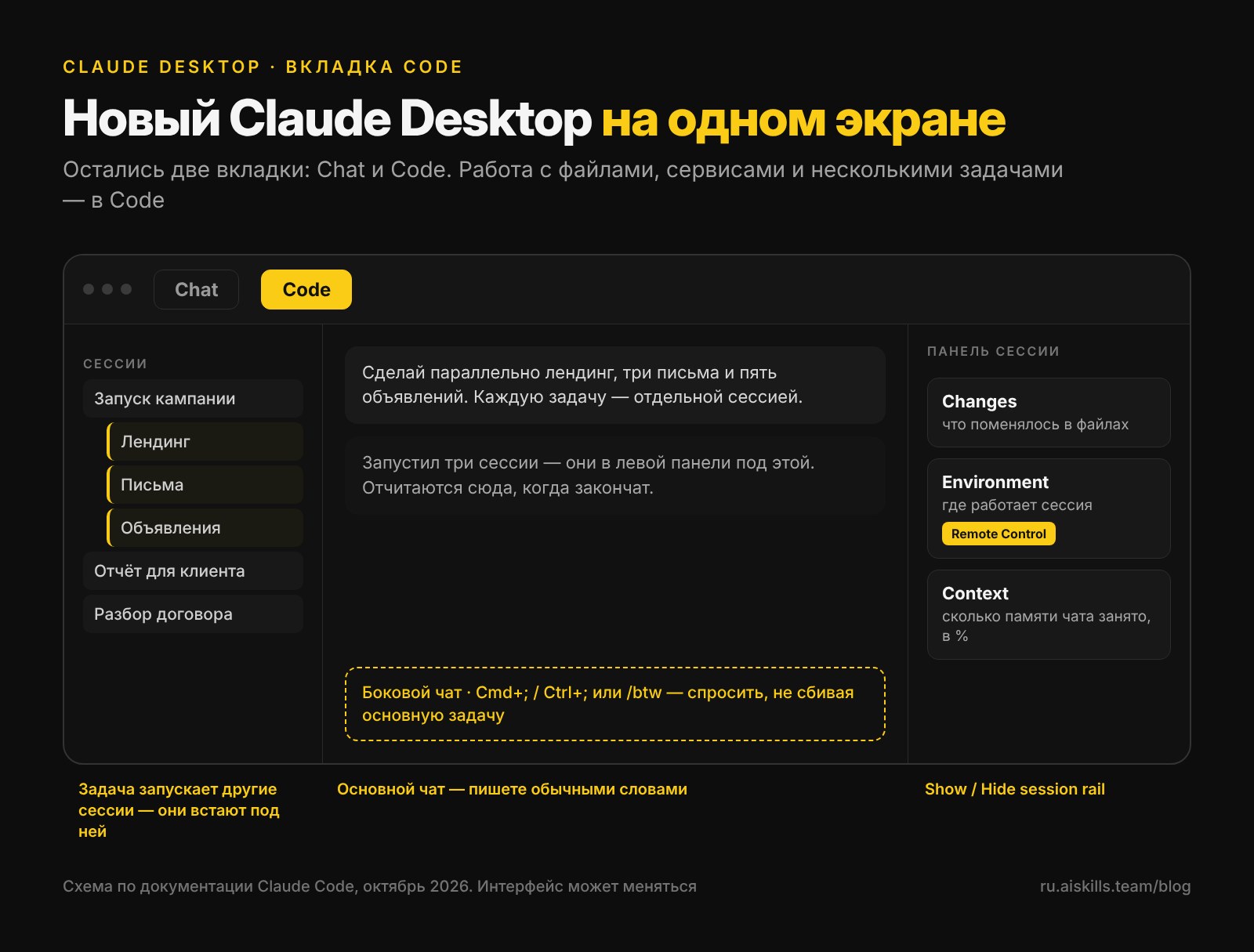
The new Claude Desktop has stopped being a chat and become a workspace: in the Code tab one main session hands out tasks to others, a separate side chat answers questions without derailing the work, and artifacts build documents, slides and dashboards right next to the conversation. Below are ten updates, each checked against Anthropic's documentation as of October 31, 2026, plus an honest list of what shows up in retellings but is not confirmed by the docs.
Short on time? Five points
- Only two tabs are left: Chat and Code. Cowork merges into Chat. Anything involving files, services and several tasks at once now lives in Code, and you don't need to program for it: you describe the task in plain words. Code is available on Pro, Max, Ultra, Team and Enterprise, and not on the free plan.
- One task can start several chats in parallel. A landing page, emails and ads get built at the same time in separate sessions, while the main chat sees the others and collects their answers.
- Projects move work to the cloud. You can close the laptop and the task keeps going. For now it is a beta on Pro, Max and Ultra, and not offered on Team and Enterprise.
- Artifacts have become a place to work. Docs, slides and design are available even on the free plan, dashboards are a beta on paid plans, and video made with code (Motion) is Team and Enterprise only.
- Setting it all up takes an evening; the checklist is at the end of the article. And to figure out what to build on this desk for a client, there is Cerebrum on AI SKILLS: more on it, and on the video where I put together a warehouse automation plan, near the end.
Why this matters if you work on commissions
Everyone compares models by how smart they are. The thing to count is different: how many tasks one person runs at the same time.
Claude used to be a conversation partner: one question, one answer, and then you wait before the next task. Now it is a desk where you set three tasks, walk away, and come back half an hour later to three results. For a freelancer this means an order like "landing page + email sequence + ads" is done by one person in one sitting, not over three evenings.
Speed of assembly is not a promise about the market, but it is something these tools give you right now. The less time a first draft takes, the more orders you can take on and the sooner a client sees something real.
1. Only Chat and Code are left
Cowork merges with Chat into a single conversation, while the model picker and the Code tab stay where they were. The update is rolling out in stages: Pro, Max and Ultra get it first, and on Team and Enterprise it arrives where an administrator has turned on the "Chat and Cowork unified" switch (Claude Help Center).
The Code tab is where Claude works with files on your computer, connected services and several tasks. It is available on Pro, Max, Ultra, Team and Enterprise (documentation). Claude Code is not on the free plan (pricing page).
Don't let the word Code scare you. Inside, you write the same thing you would in a regular chat: "go through these five contracts and make a table of risks."
2. The session rail and working from your phone
To the right of the chat is the session rail. It shows what changed in your files (the Changes card), where the session runs (Environment) and how much of the chat's memory is already used (Context, with a percentage in the header). You hide and bring back the rail with the Hide session rail and Show session rail buttons in the session header (documentation).
Remote Control is a switch in the Environment card. Turn it on and you can return to the same session from your phone or from claude.ai/code. To have new sessions connect automatically, turn on Connect new sessions to Remote Control in Settings → Claude Code (documentation). The same place has the Keep this computer awake for Remote Control setting, so the computer won't go to sleep while Claude is working (documentation).
On Team and Enterprise, Remote Control is off by default; the organization owner turns it on in the admin settings (documentation).
3. What eats the chat's memory before your first message
Context is the chat's working memory: everything the model holds in mind right now. For the new models the window is a million tokens (documentation), which is several thick books.
But part of that space is taken before you have typed anything: the CLAUDE.md instructions file, automatic memory, descriptions of installed skills and the names of MCP tools are loaded into every session in advance (documentation). Install thirty skills "just in case" and every new chat starts with that load.
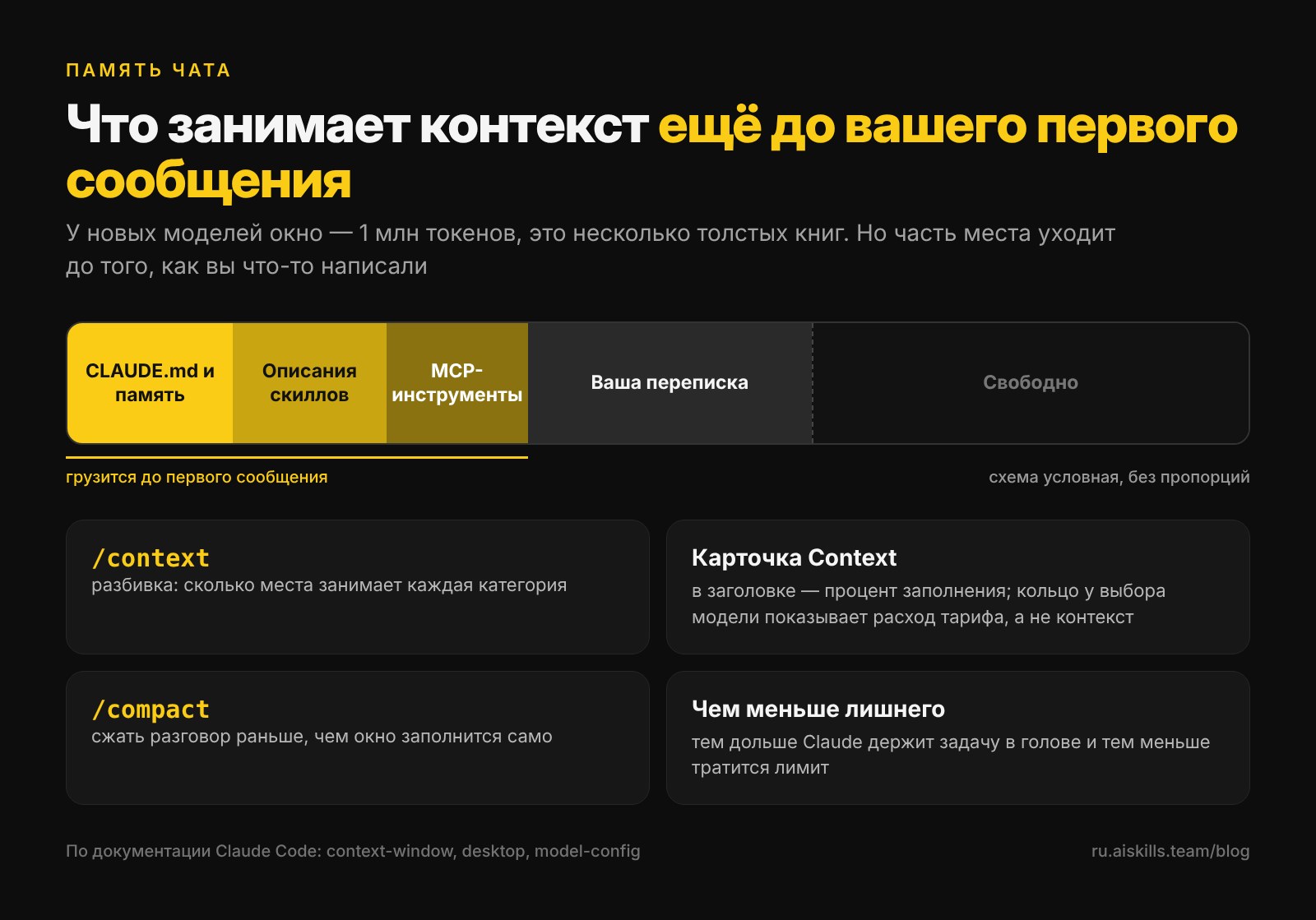
The /context command shows how much space each category takes. The ring next to the model picker shows something else: your plan's usage limit, not the chat's memory (documentation). When the window fills up, the session compresses the conversation on its own; /compact does it earlier.
Here is the prompt I would start the cleanup with:
```
Look at what gets loaded into my chats before the first message: CLAUDE.md, memory files, skills and MCP tools. Start by running /context. List roughly how much space each item takes and suggest what can be shortened, merged or turned off without losing anything I actually use. Don't change anything without my approval.
```
4. Several tasks at once: the main session and the rest
This is the update that makes the whole article worth reading.
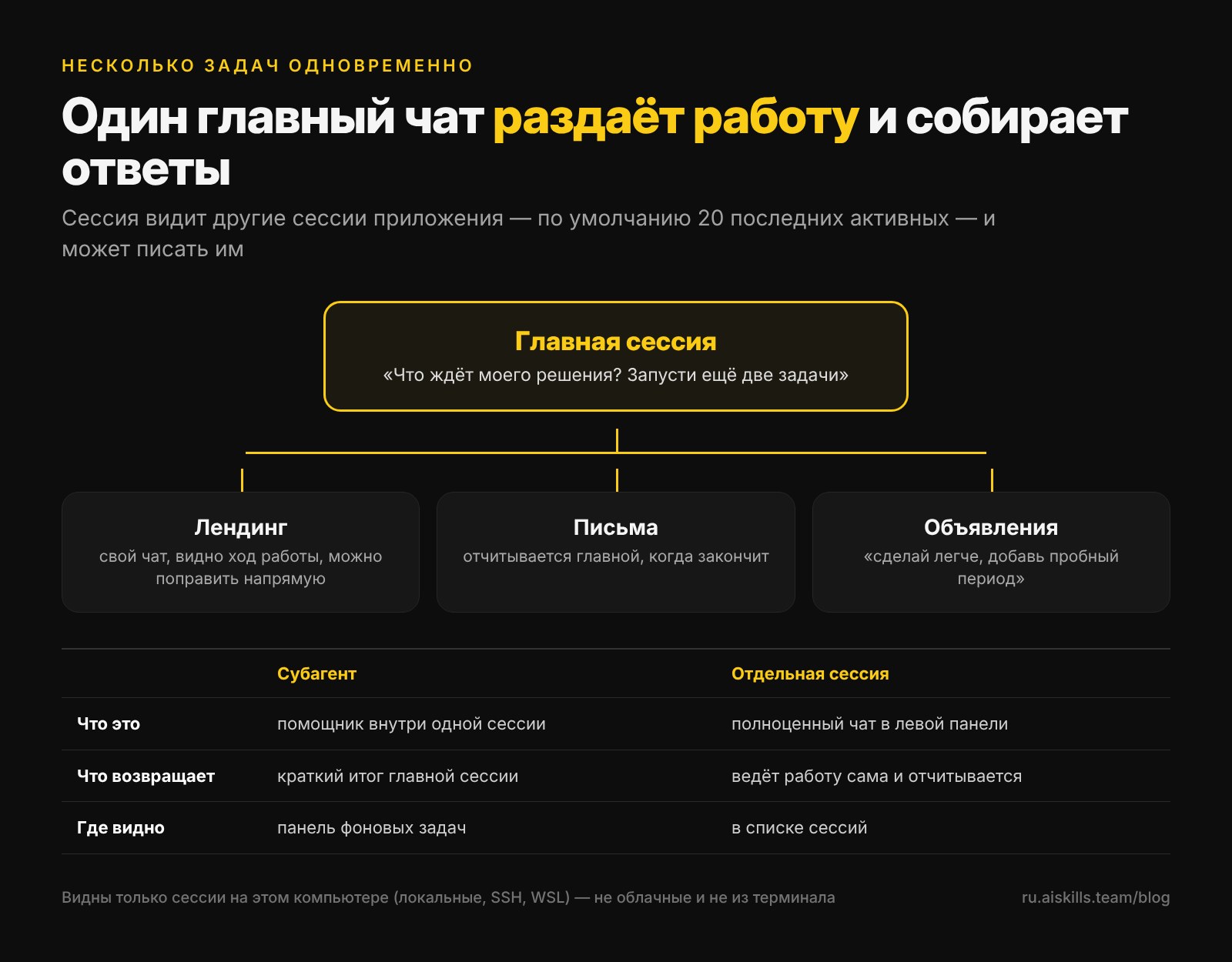
A session can start other sessions. When Claude suggests splitting the work into tasks, the Start (or Start all) button launches each one in its own session, and they appear in the left panel under the current one (documentation). Each is a full chat: you can open it, watch the progress and make corrections directly.
A session can see other sessions. Claude can list your sessions, read what has been done in them, send them a message, rename or archive them. By default the 20 most recently active are visible (documentation). There is an important limit: only sessions on this computer are visible, meaning local ones, over SSH and in WSL. Cloud sessions and ones started from the terminal or VS Code are not.
This gives you a working habit: pick one chat as the "control panel." You can assign it with a single phrase:
```
You are my main session. From here, keep an eye on the others: which tasks are done, which are waiting for my decision, where questions have come up.
```
After that it is convenient to ask it "which of my chats are waiting for my decision?" or "start two new sessions: a landing page for a stretching studio and three emails for people who didn't get as far as paying."
How this differs from subagents. A subagent is a helper inside one session: it gets an assignment, returns a short summary, and doesn't appear in the list on its own. A separate session is a whole chat that does the work itself and reports back (documentation).
What this means: an order in three parts (page, emails, ads) is run by one person in one sitting. While the sessions work, you talk to the client.
5. Projects: a team of sessions in the cloud
A project is for when one big piece of work needs many cloud sessions: Claude starts them and keeps track of them from one conversation, and on the Overview page you see what is done and where your decision is needed (documentation). The work happens in the cloud and continues when the laptop is closed.
Three things to know before you start:
- Shared project rules are written in Project settings → Memory → Project instructions, up to 16,000 characters. All sessions in the project read them. For example: "Write everything in plain English, simply and without bureaucratic phrasing."
- Files you upload to a project are copied to Anthropic's cloud. Decide in advance which of a client's working materials may go there (documentation).
- Projects use up your plan's limit faster than ordinary sessions (documentation).
Availability: a public beta on Pro, Max and Ultra, opening up gradually. Not yet offered on Team and Enterprise. If you don't see Projects in the left panel, join the waitlist.
6. The side chat and two chats side by side
The side chat is for a question in the middle of a long task: "how much is left?", "what have you done so far?" It opens with Cmd + ; on Mac, Ctrl + ; on Windows, or the /btw command. It sees the whole main thread up to that moment but adds nothing to it. Keep in mind that side chats are not saved, so copy the answer you need (documentation).
Split view puts two sessions side by side: hold Option (Mac) or Alt (Windows) and click a session in the left panel, or right-click → Open in → Split view. Open in → New window opens the session in a separate window, and Open in → Cloud moves it to the cloud, where it keeps working even when your computer is off (documentation).
7. Artifacts: documents, slides, design, dashboards and video
An artifact opens next to the chat as a separate working area: you and Claude edit the same material, leave comments and share the result by link. There are five types: Docs (documents), Slides (presentations), Design (posts, sites, visuals), Dashboards (live panels with data from connected services) and Motion (video built with code) (Anthropic, October 8, 2026).
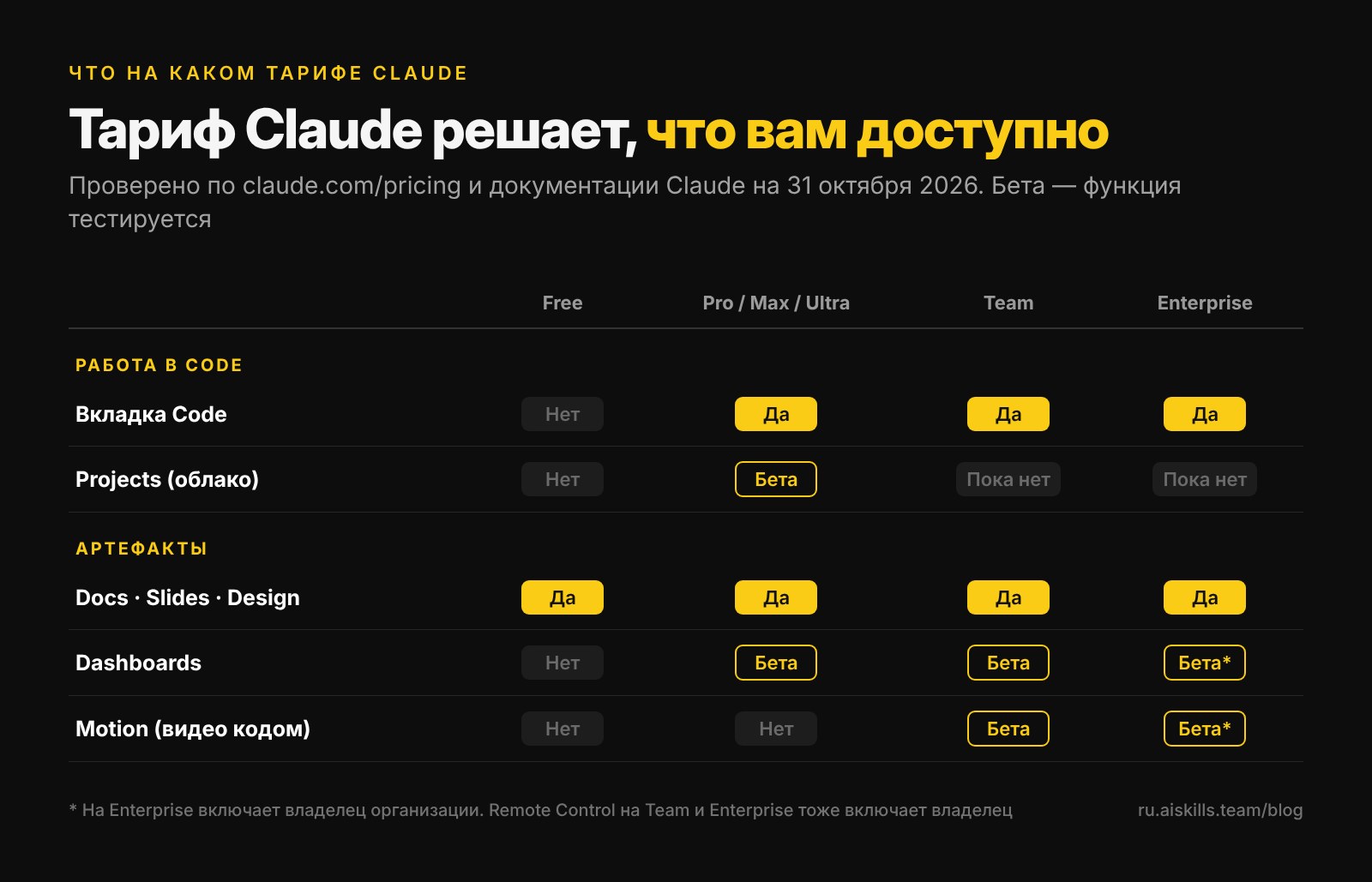
Docs, Slides and Design are out of beta and available on all plans, including the free one. Dashboards is a beta on paid plans. Motion is a beta on Team and Enterprise only. The separate claude.ai/design site works until December 14, after which its tools live inside Claude (Claude Help Center).
An artifact that answers questions. In Settings → Capabilities, turn on the Artifacts that use Claude switch (it used to be called "AI-powered artifacts") and ask: "Add a search bar where anyone can ask a question about this data." A colleague opens the link and asks in plain words, each under their own account and their own limits.
What this means: a dashboard over a client's data with an "ask" field is an easy thing to sell to a shop or salon owner: they don't learn spreadsheets, they just ask "how many appointments were cancelled in October."
8. Seven commands worth knowing
Type / in the message box and a list appears. Start with these (documentation):
| Command | What it does |
|---|---|
/output-style | changes the response style: brief, simple, or your own (needs version 2.1.269 or newer) |
/doctor | checks the installation and settings and offers to fix what it finds |
/skill-doctor | shows how much space your skills take and how often you use them (version 2.1.252 or newer) |
/advisor | connects a second, stronger advisor model for hard decisions |
/insights | a report on how you work with Claude Code and what is worth trying |
/recap | reminds you in one line where the session left off |
/rewind | takes the conversation back to an earlier point |
A prompt for your own response style: "Create a response style for me: brief, friendly, no jargon."
9. Mods: two useful add-ons
Mods are small add-ons that change how Claude Code looks or behaves. They are on by default: in Desktop from version 2.1.286, in the terminal from 2.1.287 (documentation).
- Ribbon is a thin strip above the input field: how much of your limit is left in the 5-hour and 7-day windows, when it resets, and whether the cache is "warm." The cache is the already-processed part of the conversation: while it is warm, the next request is cheaper. Install it in a session with
/plugin install ribbon --marketplace robonuggets/ribbon. The project description does not explicitly state Desktop support, so check on your own machine. - Savvy Progress is a progress bar and a live subagent panel. Install it with two commands, one after the other:
/plugin marketplace add johnnyvizz/claude-kit, then/plugin install savvy-progress@claude-kit, and then restart the session. For Desktop the authors also describe a fallback route through theCLAUDE_CODE_PLUGIN_DIRSvariable.
Both projects are open source and free. Mods are an early feature, and the way to install them may change between versions.
10. Keyboard shortcuts: what is confirmed and what is not
| Mac | Windows | What it does |
|---|---|---|
| Cmd + / | Ctrl + / | the full list of Code tab shortcuts |
| Cmd + ; | Ctrl + ; | side chat (or /btw) |
| Option + click | Alt + click | open a session side by side |
| Esc | Esc | stop the response |
The source is the shortcuts table in the documentation.
What is not in the documentation, even though it appears in retellings of the update. Quick access to Claude from any app currently exists only on Mac, by double-pressing Option or with Option + Space; asked about Windows, the Help Center answers "no" (Claude Help Center). Dictation on Mac is triggered by the Caps Lock key and is off by default. I could not find the Ctrl + Alt + Space and Ctrl + D shortcuts for Windows in any official source. A double Esc opens the rewind menu in the terminal version, and only when the input field is empty (documentation).
This is not nitpicking. The interface changes fast, and half the mistakes in guides are names that changed within a week.
An evening checklist
Interface
- ☐ Open Code and turn on the session rail: Show session rail.
- ☐ Settings → Claude Code: turn on Connect new sessions to Remote Control and Keep this computer awake for Remote Control.
- ☐ Run
/contextand the cleanup prompt from section 3.
Sessions
- ☐ Pick a main chat and send it the "You are my main session…" prompt.
- ☐ Start one real three-part task, with each part in its own session.
- ☐ Find Projects in the left panel; if it isn't there, join the waitlist.
- ☐ Open the side chat (Cmd + ; / Ctrl + ;) and two sessions side by side (Option/Alt + click).
Tools
- ☐ Create an artifact and check what it can do on your plan using the table above.
- ☐ Turn on Artifacts that use Claude and add a question field to a dashboard.
- ☐ Try
/output-style,/doctor,/skill-doctor,/advisor. - ☐ Install Ribbon and Savvy Progress.
The desk is ready. Cerebrum will tell you what to build on it
Claude Desktop answers the question "how do I work faster." It doesn't answer "what should I build for a client, and from what": it doesn't know which skills, templates and open-source projects came out last week, and it can easily suggest a tool that doesn't exist.
For that, AI SKILLS has Cerebrum, a chat through which the whole platform works. You write the task in words, and it:
- asks a clarifying question if the task is vague, one or two questions that go to the point;
- searches by meaning, not by keywords, in the platform's live database: more than 10,500 skills for Claude, more than 3,600 n8n and Make automation templates, more than 970 open-source products. The database is updated every few days;
- assembles one chain, step by step: what comes after what and what gets handed to whom;
- for every open-source step, writes a ready prompt for Claude Code: what to clone, what to study, what to build;
- tells you which step to start with today.
Cerebrum links only to what actually exists in the database: the rules of the section forbid it from inventing a project.
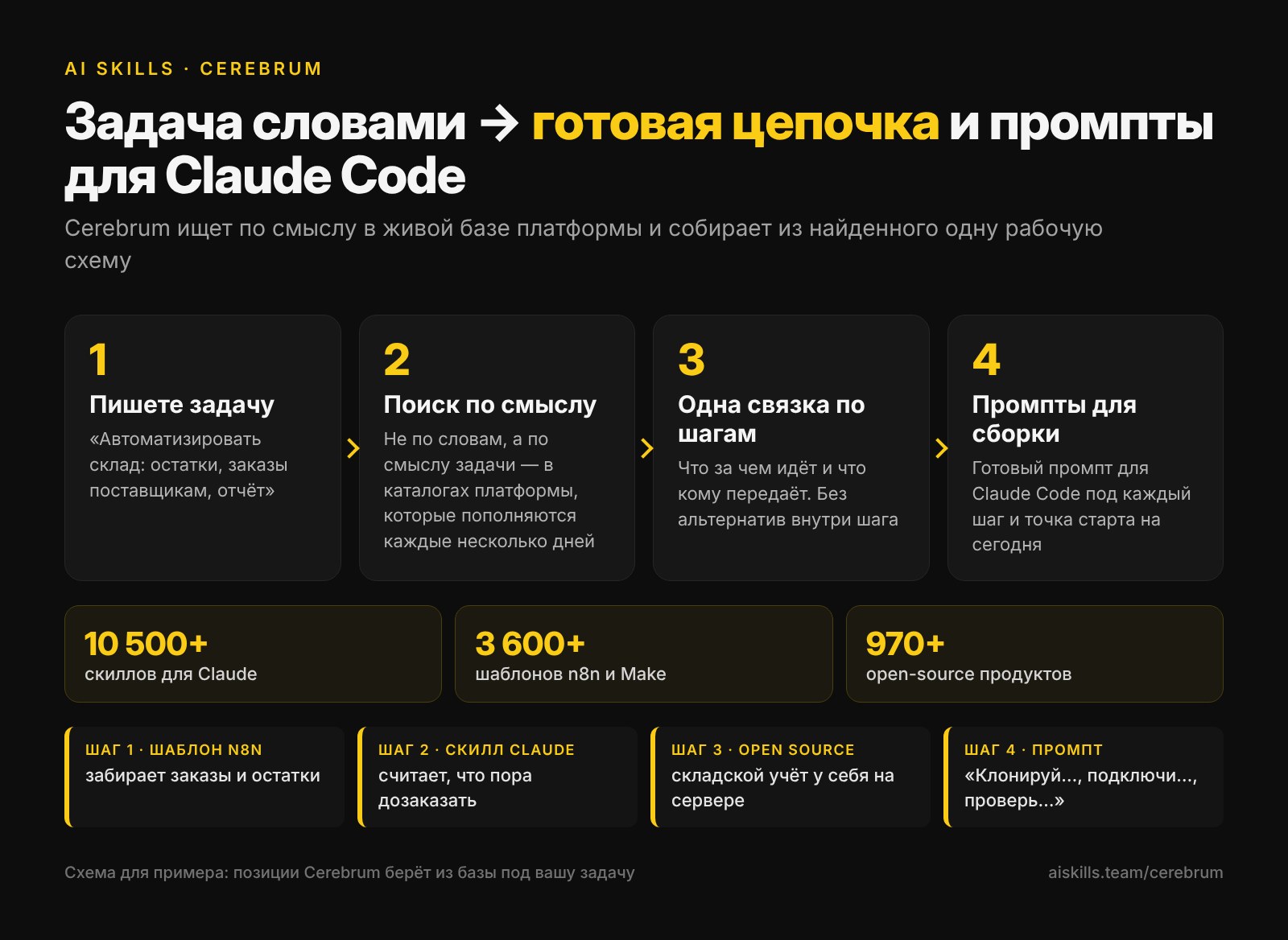
See what this looks like on a live task. In the video I use Cerebrum to put together a step-by-step warehouse automation plan: it picks skills, automation templates and open-source solutions for the task and immediately writes prompts for Claude Code. The warehouse is just an example: a support bot, a reporting system or a CRM is put together the same way.
The link with Claude Desktop is direct: Cerebrum hands you the chain and the prompts, you spread the steps across sessions, each step in its own chat, and the main session collects the result.
What it costs. Cerebrum is available to any registered user, and you pay from the platform wallet by actual use. You pick the "brain" level to fit the task: light is up to $0.60 per turn, medium up to $1, high up to $2. That is a ceiling, not the price: after the answer the actual cost is calculated and the difference goes back to your balance.
Building this yourself and selling it: the Creator plan
Cerebrum shows what to build a solution from. To build it by hand and sell it to a client, you need the skill and access to the tools themselves. That is the Creator plan:
- the VIBE CODING course, from how any app is put together to sites, Telegram bots and CRMs that sell;
- the "AI-Assistants" course: your own assistants, auto-funnels, an AI sales agent and a website widget;
- an express course on Claude and three more: "Personal AI Bureau," Google Gemini + 12 Gems, AI Agents;
- advanced skills for Claude and n8n and Make automation templates, the very items Cerebrum puts into the chain;
- links to the Open Source repositories in the catalog;
- +$29 added to your balance every month, for Cerebrum turns and generations.
Creator costs $139 a month; pay for 3 months at once and it is 10% off, for 6 months, 15% off. You can try the approach for free: registration opens three days of Basic, and in them two introductory VIBE CODING lessons are already available.
Where to start today
Take a task you were commissioned for, or could be, for example "a landing page and three emails for a studio." Describe it in Cerebrum, get the chain and the prompts, and then spread the steps across sessions in Claude Desktop. One evening, and you have a draft of the order and a sense of how long it took.
What to read next
Skills for Claude Code: what they are and where to get ready-made ones: how to install skills, which then take up that very context.
12 Claude Code skills worth installing: a short list instead of thirty "just in case."
Build it once, it runs forever: n8n and Make templates and videos in Cerebrum.