AI Support Agent for Your Website: The Bot Answers From Your Materials, a Manager Takes the Hard Cases
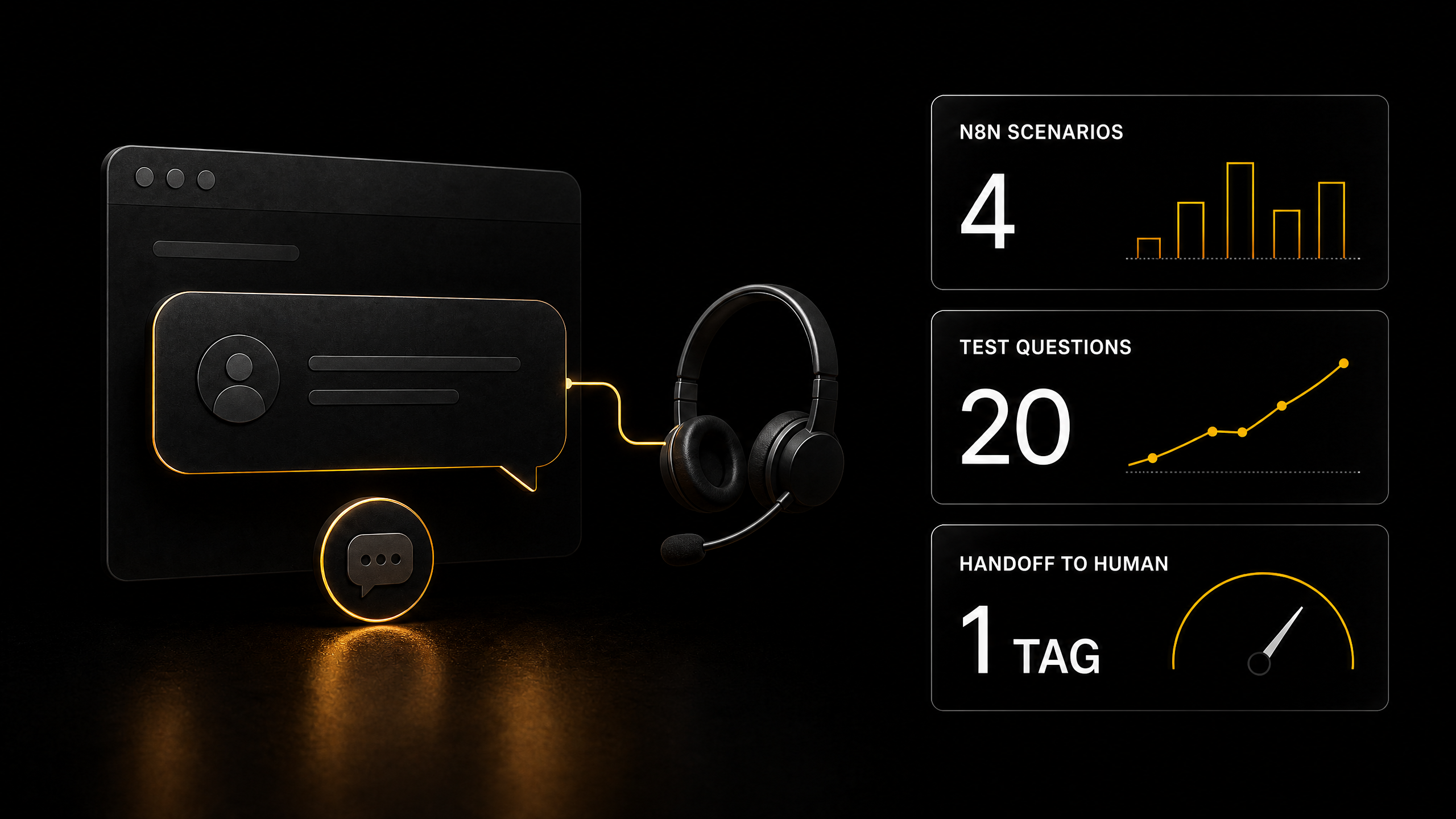
Managers answer the same questions a hundred times a week: how much does it cost, how do I book, when do you close. A scripted bot breaks at the first question that is off-script, and a bot that is "just a neural network" confidently invents prices. Below is a three-step setup where the bot answers only from your website's materials and hands everything it cannot handle to a live person in a shared inbox.
Managers answer the same questions a hundred times a week: how much does it cost, how do I book, when do you close. A scripted bot breaks at the first question that is off-script, and a bot that is "just a neural network" confidently invents prices. Below is a three-step setup where the bot answers only from your website's materials and hands everything it cannot handle to a live person in a shared inbox.
Short on time: five points
- The bot knows only what you give it. First a crawler walks your site and collects the page texts, then they are loaded into a vector database. That is its memory.
- The brain is built in n8n from a ready-made template: four workflows. One answers questions, three look after the knowledge base: they add, update and delete documents without a restart.
- Chatwoot provides the on-site window and the handoff to an operator — a self-hosted alternative to Intercom. Telegram, WhatsApp and email feed into the same place.
- The Chatwoot and n8n combination has two traps. The bot receives its own replies as new events and starts talking to itself. After the handoff to an operator it keeps receiving messages. Two filters close both traps.
- Start with Step 2. Import the template, put in two or three pages by hand and check the quality of the answers. Connect the crawler and the widget once you are happy with the answers.
Why ordinary chatbots don't work
A business that gets leads from its website usually has one of three setups.
A widget with a "leave a request" form. The customer writes a question at 11:40 pm and gets an answer in the morning. By morning they have already written to your competitors.
A bot with buttons and scripts. Fine as long as the customer presses buttons. The moment they write "can I bring a large dog on Saturday after six?", the script runs out.
A bot wired to a neural network with no knowledge base. It answers everything, briskly and politely. And it quotes a price you never had, because the model assembles a plausible answer, not a correct one.
You need a fourth option: a bot that answers freely, like a person, but only from your materials, and when the materials have no answer it says so honestly and calls a manager.
This is called RAG (Retrieval-Augmented Generation): before answering, the bot searches your database for relevant fragments and answers based on them.
Who I am and what's mine here
I have been automating businesses for three years and have automated more than a hundred companies in that time. I specialize in RAG agents and workflows for CRMs, messengers and marketplaces, and I run the n8n and RAG agents block on the platform.
I build setups like this regularly, and most often the problems are not in the neural network itself but at the joints: where the bot gets its knowledge, how that knowledge is updated, and what happens when the bot fails. That is why below I have taken each of the three tools apart from the inside: what it actually does, what it needs, and where it breaks.
How the whole setup fits together
Three parts, each with its own role:
| Part | What it does | Tool |
|---|---|---|
| Knowledge | collects the site's texts and keeps them up to date in a vector database | crawler + n8n loading workflows |
| Brain | takes the question, searches the base for an answer, phrases it, decides whether to call a human | RAG agent in n8n |
| Window and human | on-site widget, shared inbox for managers, conversation handoff | Chatwoot |
The path of a single message: the customer writes in the widget → Chatwoot sends an event to n8n → the agent searches the base and replies → the reply goes back to Chatwoot and appears for the customer. If the agent decides a human is needed, the conversation moves to the managers' queue.
Step 1. Knowledge: crawl the site and build the base
Crawler card: "website → AI knowledge base" →
How it works
The crawler launches a headless browser, opens the start page and then acts on your rules:
- start URL — the main page of a section or a
sitemap.xmlfile; if you give it the sitemap, the crawler goes through every page listed in it; - link pattern — which addresses to follow, for example only
/services/and/faq/; - exclusions — where not to go: the cart, the personal account, a five-year-old blog;
- CSS selector — which part of the page to take text from. This is an important setting: without it, the menu, footer and cookie banner of every page end up in the base, and the bot will quote your own footer back to you;
- limits — maximum number of pages, maximum tokens or megabytes in the output file.
The output is one JSON file: for each page, a title, an address and the text.
What you'll need
- Node.js 16 or newer;
- a browser for crawling is installed automatically with the dependencies;
- your site and the crawl rules. If you crawl a site that isn't yours, respect its terms of use.
Prompt for Claude Code
"Take the open-source project from this card: https://aiskills.team/open-source/gpt-crawler-turn-any-website-into-an-ai-knowledge-base. Clone the repository and configure the crawl of the site [URL], limited to the sections [services, FAQ, prices, contacts]. Pick a CSS selector for the main content so that the menu, footer and banners don't end up in the text. Run it and save the result to knowledge/site.json. Then split the file into separate documents by page — one document per page, with the page title and address at the beginning of each — for loading into a vector DB."
Where to put the documents. The template from Step 2 takes its knowledge from a Google Drive folder: you drop a file in and it loads into the base by itself. So the crawler's documents are simply placed in that folder. If the site changes, you rerun the crawler and replace the files, and the update workflow replaces the old version in the base on its own.
Step 2. Brain: a RAG bot in n8n with knowledge base management
Template card: "RAG chatbot with knowledge base management" →
This is the main step and the most valuable template in the setup. Most RAG templates can answer but cannot update the base: the document changed, yet the bot keeps quoting the old price. Here the base management is fully built. I went through all four workflows node by node.
What's inside
Workflow 1 — answers to customers.
- Input — the n8n chat node (Chat Trigger) in public mode: it has its own chat page, which is handy for testing.
- An AI agent on an OpenAI model with dialogue memory of the last 12 messages: the customer can ask follow-ups and the bot remembers what was being discussed.
- A search tool for the Pinecone vector database: the agent decides on its own when to go to the base.
- A tool for writing to a Google Sheet: when a customer asks about opening hours or services, the bot asks for a name, phone or email and records the lead together with what the person was interested in.
Workflow 2 — adding documents. Triggers when a new file appears in the Google Drive folder: downloads it, splits it into fragments, turns them into vectors and loads them into Pinecone with tags — document ID, title, source, version. The document is written to a registry sheet, and a notification arrives by email.
Workflow 3 — updating. Triggers when a file in the folder changes. The order is careful: first the new version is loaded and checked, and only then are the fragments of the old one deleted. Between steps there are pauses, checks and retries, and at the end an email about success, a warning or an error. This way a document doesn't vanish from the base in the middle of an update.
Workflow 4 — deletion. Compares the Drive folder with the registry and deletes from the base the fragments of files that are no longer in the folder. In the template it is started manually — it's worth putting it on a schedule, for example once a day.
What you'll need
- n8n — your own server or a cloud account;
- an OpenAI key — for answers and for vectors;
- Pinecone — the vector database. The card also mentions Qdrant, but the template is built specifically on Pinecone. You can move to Qdrant, but you'll have to replace the vector database nodes and the deletion queries — that's a job for Claude Code, not a single checkbox;
- Google Drive, Google Sheets, Gmail — the document source, the registry with leads, and notifications.
Setup step by step
- Import the four JSON files into n8n.
- Connect your credentials: OpenAI, Pinecone, Google Drive, Sheets, Gmail.
- Create a separate Header Auth credential for requests to Pinecone: name
Api-Key, value — your Pinecone key. - Replace the placeholders in the workflows: the Pinecone index name and address, the Drive folder ID, the IDs of the two sheets, the email address for notifications.
- Create two sheets.
Document registry: document_id, document_name, namespace, source, status, last_synced_at, file_modified_time, chunks_count, active_version_id.
Leads: name, phone, email, interested in.
- Run each workflow manually and only then switch the triggers on.
The system prompt must be rewritten completely
The template was made for a dog-grooming salon: the salon's name is hard-coded in the prompt. Here is a base for your business:
"You are a consultant for [company name], [what it does, city].
Answer only from the knowledge base: search it before every answer. If the answer isn't in the base, don't make it up — say: "I'll check with a manager" and add the tag [OPERATOR] at the end of the reply.
Never state prices, deadlines, addresses or terms that aren't in the knowledge base.
Keep answers short: two to four sentences, in the customer's language, no bureaucratic phrasing.
If the customer asks for a human, an operator or a manager, is unhappy, or writes about a complaint, a refund or payment — reply "Passing you to a manager" and add the tag [OPERATOR].
When the customer asks about a service, a price or a booking, ask for their name and phone and save them to the leads sheet together with what they were interested in."
You'll need the [OPERATOR] tag in Step 3: it's how n8n understands that the conversation should be handed to a human, and it cuts the tag out of the reply to the customer.
How to check quality before moving on
This is your plan for today. Put two or three pages in the Drive folder by hand — services, prices, FAQ. Open the chat page from the first workflow and ask twenty questions that customers really ask. The easiest source is the managers' correspondence from the last month.
Check each answer on three points:
- the answer is correct — verify against the site;
- the answer isn't in the base — the bot honestly said "I'll check with a manager" instead of making something up;
- a trick question — for example, about a service you don't offer: the bot didn't agree to provide it.
If even one answer is invented, fix the prompt and the documents instead of moving on to the widget. A widget on top of a bad bot only shows customers faster that the bot is bad.
Step 3. Window and human: the widget and shared inbox in Chatwoot
Chatwoot card — omnichannel support on your own server →
Chatwoot is an open-source alternative to Intercom and Zendesk. A widget for the site, a shared inbox for the team, and into the same inbox you can connect Telegram, WhatsApp, email, Instagram and other channels. Managers see all conversations in one window, with the customer's history, labels, canned replies and internal notes.
The description on the card doesn't say how exactly to connect your own bot to it. I worked it out from the source code, and the mechanics are as follows.
How Chatwoot works with an external bot
1. The bot is registered in the settings. In "Settings → Bots" you create a bot: a name and the webhook address Chatwoot will send events to. The bot gets its own access token.
2. The bot is connected to a source. In the inbox settings (for example, the site widget), on the "Bot configuration" tab, you select this bot.
3. New conversations start in the "pending" status. While a bot is connected, every new conversation goes to the bot first and doesn't reach the managers' queue.
4. Chatwoot sends events to the webhook. For every message a POST request arrives: the text, the message type (incoming or outgoing), the conversation number, the account number, the sender's data.
5. The bot replies through the Chatwoot API — with a request that adds a message to the conversation, with the bot's token in the api_access_token header.
6. The handoff to a human is a change of the conversation status to "open". This is a separate API request. The conversation goes to the shared queue, and managers see it with the full history of the exchange with the bot.
Two traps everyone trips over
Trap one: the bot talks to itself. Chatwoot sends the webhook an event for every new message in the conversation, including the bot's own replies. If n8n answers everything, the bot gets its own reply, answers it, gets that again — and so on in a loop. Solution: as the first node after the webhook, let through only messages of type incoming.
Trap two: the bot doesn't leave after the handoff. The bot is connected to the whole inbox, so events for the conversation keep reaching it even after the conversation has been passed to a manager. Without a check, the bot will butt into the conversation between the manager and the customer. Solution: reply only if the conversation status is pending.
What to change in the n8n template
The chat node from the template is designed for n8n's own chat page. For Chatwoot you need an ordinary webhook input. The scheme of the first workflow becomes this:
- Webhook — receives Chatwoot events.
- Filter — message type
incoming, conversation statuspending, message not private. - AI agent — the same as in the template, with memory keyed by conversation number so that different customers' conversations don't get mixed up.
- Tag check — whether the reply contains
[OPERATOR]. - Reply to the customer — a request to the Chatwoot API with the text minus the tag.
- Handoff — if the tag was there, one more request: conversation status
open.
About "low confidence"
The model doesn't give an honest confidence figure in its answer. In practice, "not sure" is built from three signs: the base search found no suitable fragments, the customer directly asked for a human or is unhappy, or the topic is on the "humans only" list — payment, refund, complaint. All three are already built into the prompt from Step 2 through the tag. That's enough for the bot to hand over to a human what it should.
What you'll need for Chatwoot
- Your own server with a domain and HTTPS. Chatwoot is deployed in Docker from four parts: the application itself, the background job worker, a PostgreSQL database and Redis. It's not the smallest server — check the memory requirements in the project's documentation.
- Environment variables — the email for notifications, the site address, channel keys. Without them some features won't work, as the authors say plainly.
- License. The core code is open, while the folder with enterprise features is licensed separately. Chatwoot's own built-in AI agent belongs to their commercial product, which is why we connect our own bot on n8n.
Prompt for Claude Code
"Take the open-source project from this card: https://aiskills.team/open-source/chatwoot-omnichannel-customer-support. Clone the repository, study the README and the deployment documentation, and deploy Chatwoot on my server via Docker with the domain [domain] and HTTPS. Create an inbox of type Website and get the widget script. Then create an agent bot in the settings, set the webhook of my n8n [address], and connect the bot to this inbox. Change the first workflow of the RAG chatbot in n8n: replace the chat node with a webhook; filter — incoming messages only, conversations in pending status only, no private notes; agent memory — by conversation number; reply to the customer — through the Chatwoot API with the bot's token; if the agent's reply contains the tag [OPERATOR], remove it from the text and move the conversation to open status. Test three scenarios: an ordinary question, a question that isn't in the base, and a request to call an operator."
The widget on the site. An inbox of type Website gives you a short script that you paste before the closing </body> tag on all pages. The same bot can be connected to other sources too, for example Telegram: the customer writes where it's convenient for them, and the bot and the managers work in one window.
The order to build in
Today — Step 2. Import the template, two or three pages by hand, twenty test questions. That's an evening, and afterwards you know the main thing: whether the answers satisfy you.
When the answers are good — Step 1. The crawler fills the whole base, and you check again with the same twenty questions plus ten new ones.
Last — Step 3. Chatwoot, the widget, the handoff to a human. Before launching on the site, run a week in quiet mode: the bot answers, a manager reads all the conversations and marks the mistakes.
After launch, once a week review the conversations handed to humans. Each such conversation is either a gap in the knowledge base that one document closes, or a topic that is right to leave to people.
What it costs and where the money is
Running costs: a server for n8n and Chatwoot (can be one), OpenAI model payment by tokens, a Pinecone plan. The template and the open-source parts cost nothing beyond access to them.
How it sells. For a business this isn't a "bot" but an answer to the customer at 11:40 pm rather than in the morning, and managers who deal with complex customers instead of opening hours. In the order feed we used to build the price list, a turnkey bot costs $100–3,000, and an assistant for a department $240–1,200. The spread is large because a "bot" can be button-based or like this one: with a knowledge base, updates and handoff to a human. These are market figures, not an income promise.
Separate income: support. The site changes, prices change, new questions appear. Those who build automations say themselves that workflows break "every two weeks". Once you've implemented the setup, monthly support follows: updating the base, reviewing handed-off conversations, refining the prompt. It's recurring income, not a one-off deal.
If you want to build this with me, step by step
In the "n8n Automations" course I have a separate block of lessons on RAG agents. Everything this article squeezes into three steps is shown there on screen, from an empty n8n to a bot that answers from your own documents.
What the lessons cover:
- n8n on your own server. How to install it with Docker so you don't depend on cloud limits.
- APIs and webhooks. How to connect a service even when n8n has no ready-made button for it.
- Documents in the bot's memory. How to split a thick PDF into chunks, turn them into vectors and store them in Pinecone, Chroma or Qdrant.
- Accurate answers. How to set up search so the bot finds the right piece of text, and how to make it remember a long conversation.
- Reliability. How a single "rescue" workflow catches errors across all your automations and sends you a notification, so you hear about a failure before your customer does.
If any step in the article felt hard, the lessons go through it slowly and with examples. The course is open on the N8N tier and on Full.
What to get on the platform
The RAG chatbot template — card. n8n and Make templates can be downloaded on the Creator tier, as well as Make, N8N and Full.
The crawler and Chatwoot — in the Open Source catalog. Descriptions are visible to everyone; links to the repositories open from the Creator tier.
Lessons on RAG agents — the "n8n Automations" course, N8N tier or Full (what's inside is in the section above).
Similar templates — the catalog has more than 3,000 automation templates: RAG bots for WhatsApp, Bitrix24, on Qdrant. If you need a channel other than a website, start with those.
Registration is free and opens three days of Basic. Templates are not included in Basic, but during those days you'll see all the descriptions and the whole catalog and understand which tier you need for your task.
Where to start today
Write down the twenty questions your managers — or your client's managers — hear most often. It takes fifteen minutes and will be useful at every step: you'll use them to test the bot before launch, after the crawler, and after the widget is connected.
If you know a business owner whose managers are drowning in identical questions, forward them this article.
What to read next
Company knowledge base — how to assemble the documents the bot will answer from.
How much an assistant for a department costs — how to calculate and sell such implementations.
Make or n8n — why this setup is built on n8n.
Three automations that sell — what else to offer a business alongside a bot.